Segment Proxy
If you're using Segment to collect data from your website, you can set up Webhooks (Actions) destination to send data to Jitsu
Use this step-by-step guide to set up Segment proxy
Add Webhooks (Actions) destination
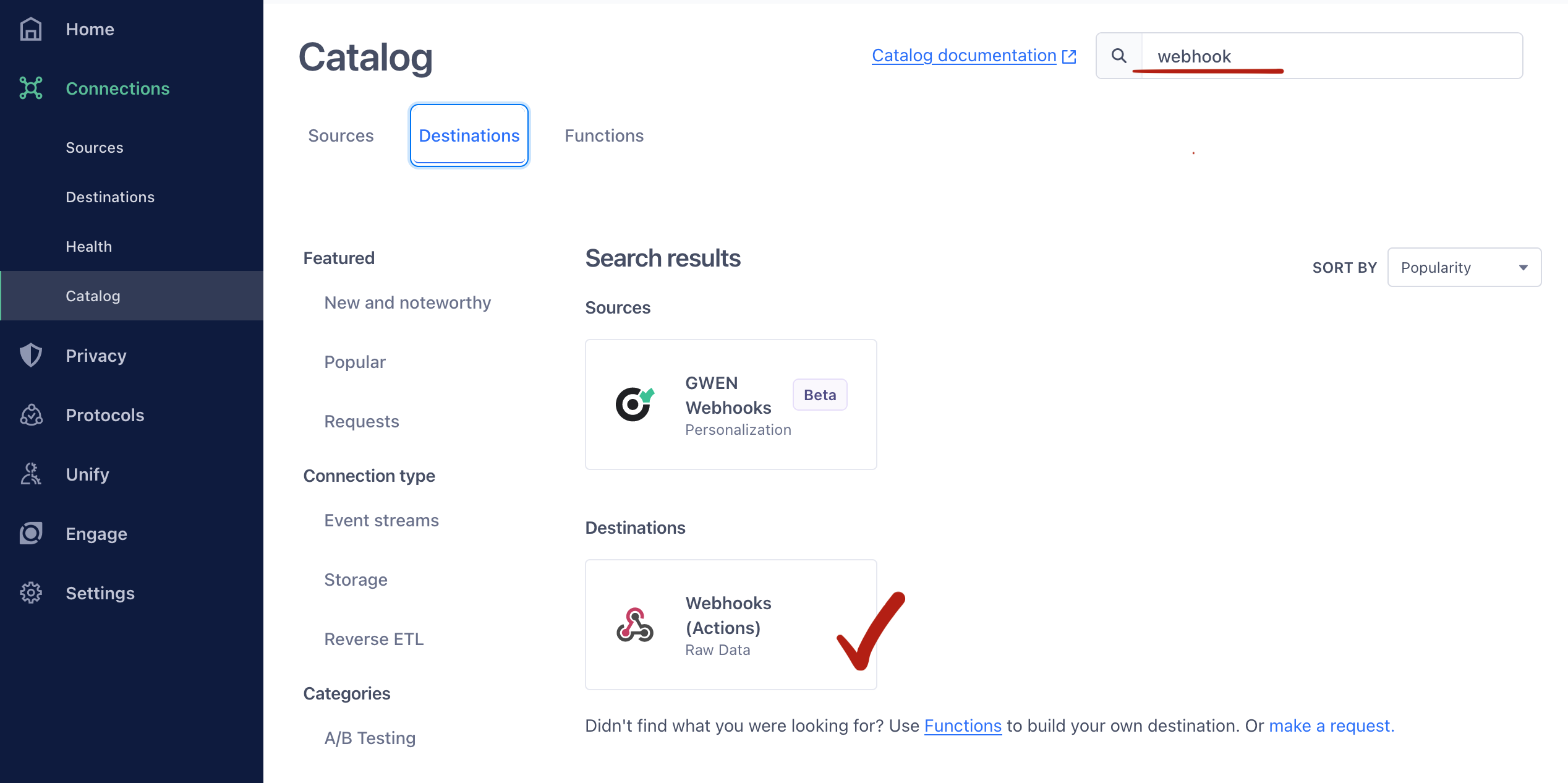
- Go to Connections / Catalog section in you Segment Workspace and find Webhooks (Actions) destination:
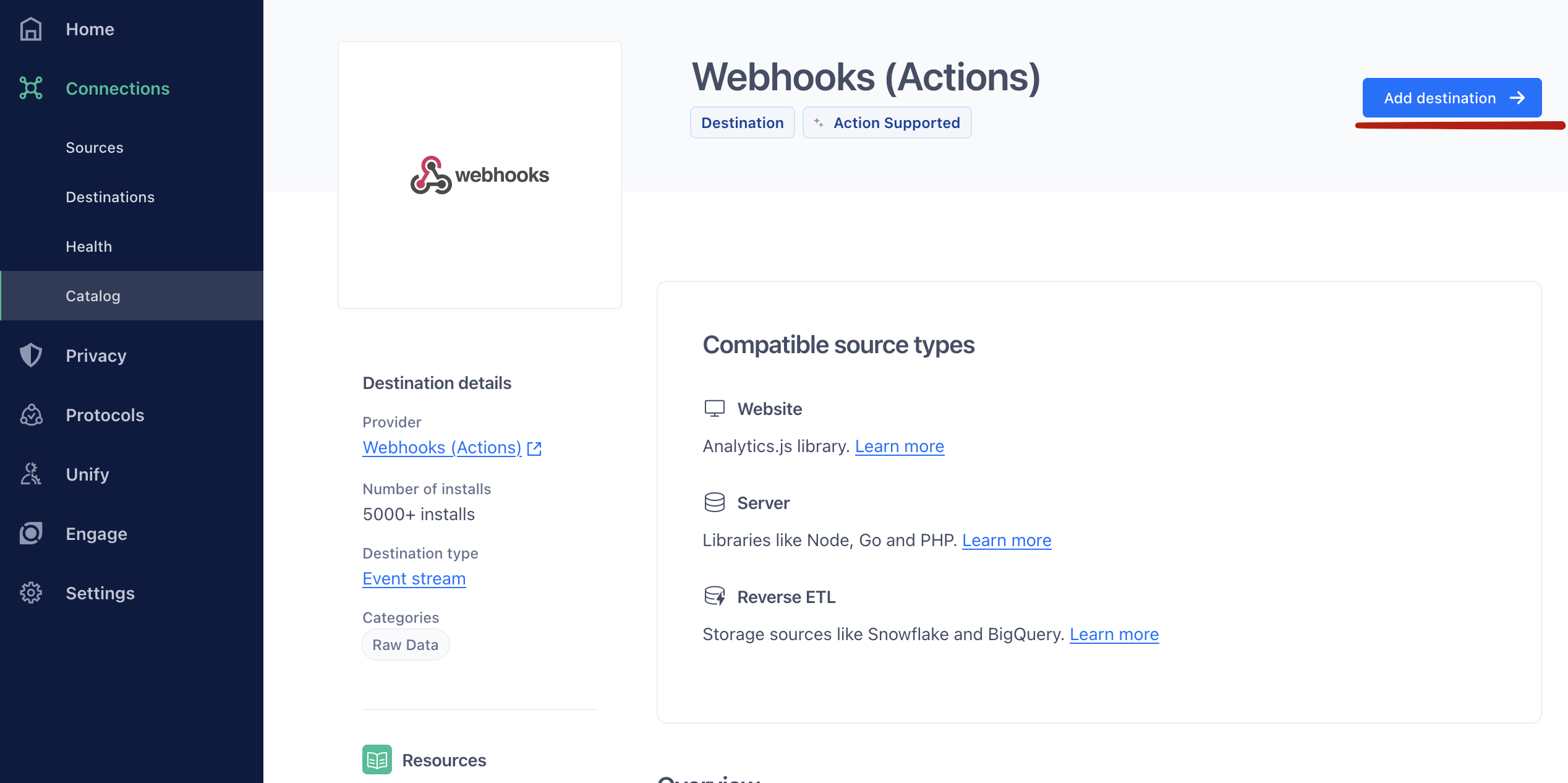
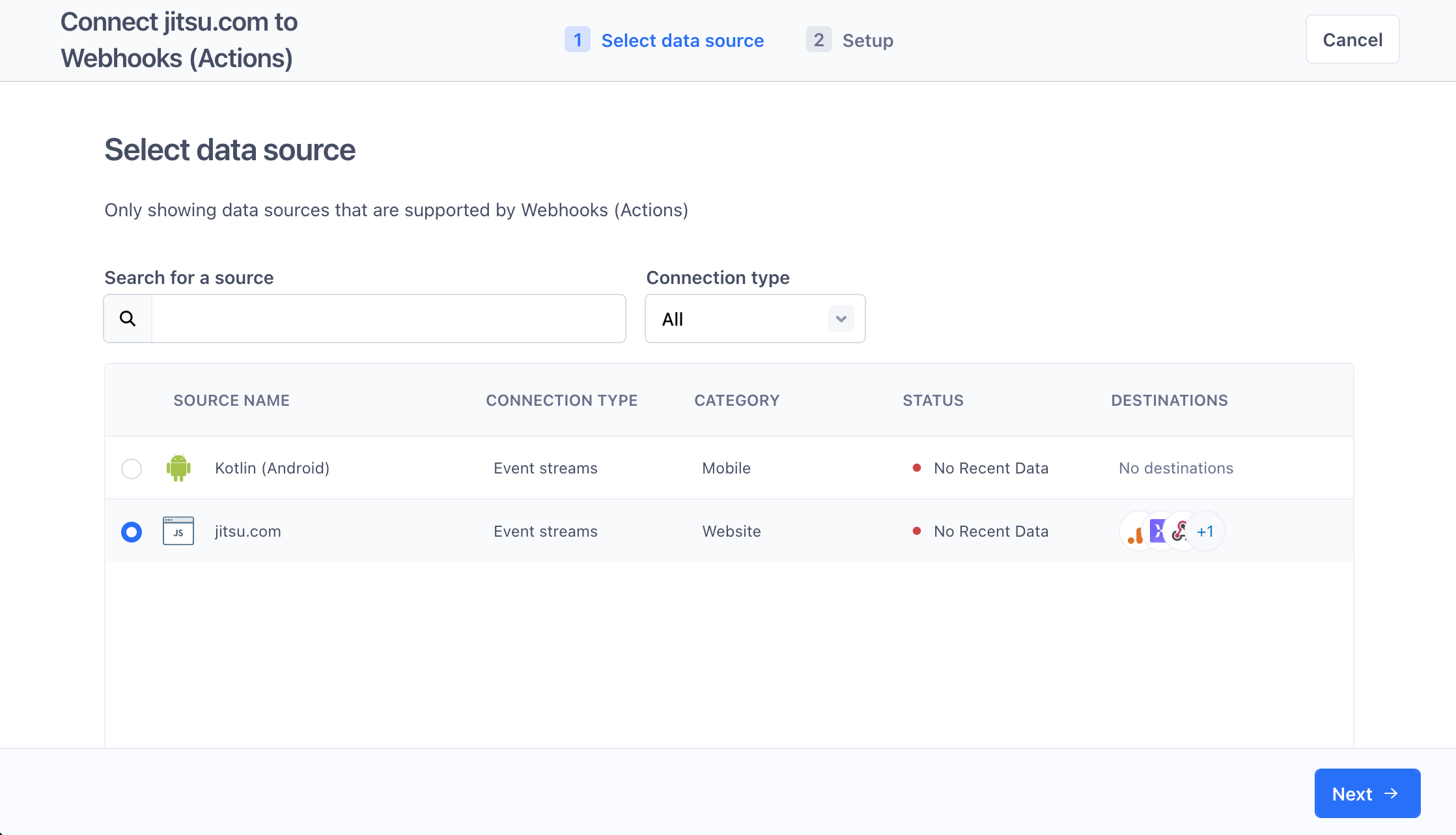
- Select data source your want to send to Jitsu and click Next
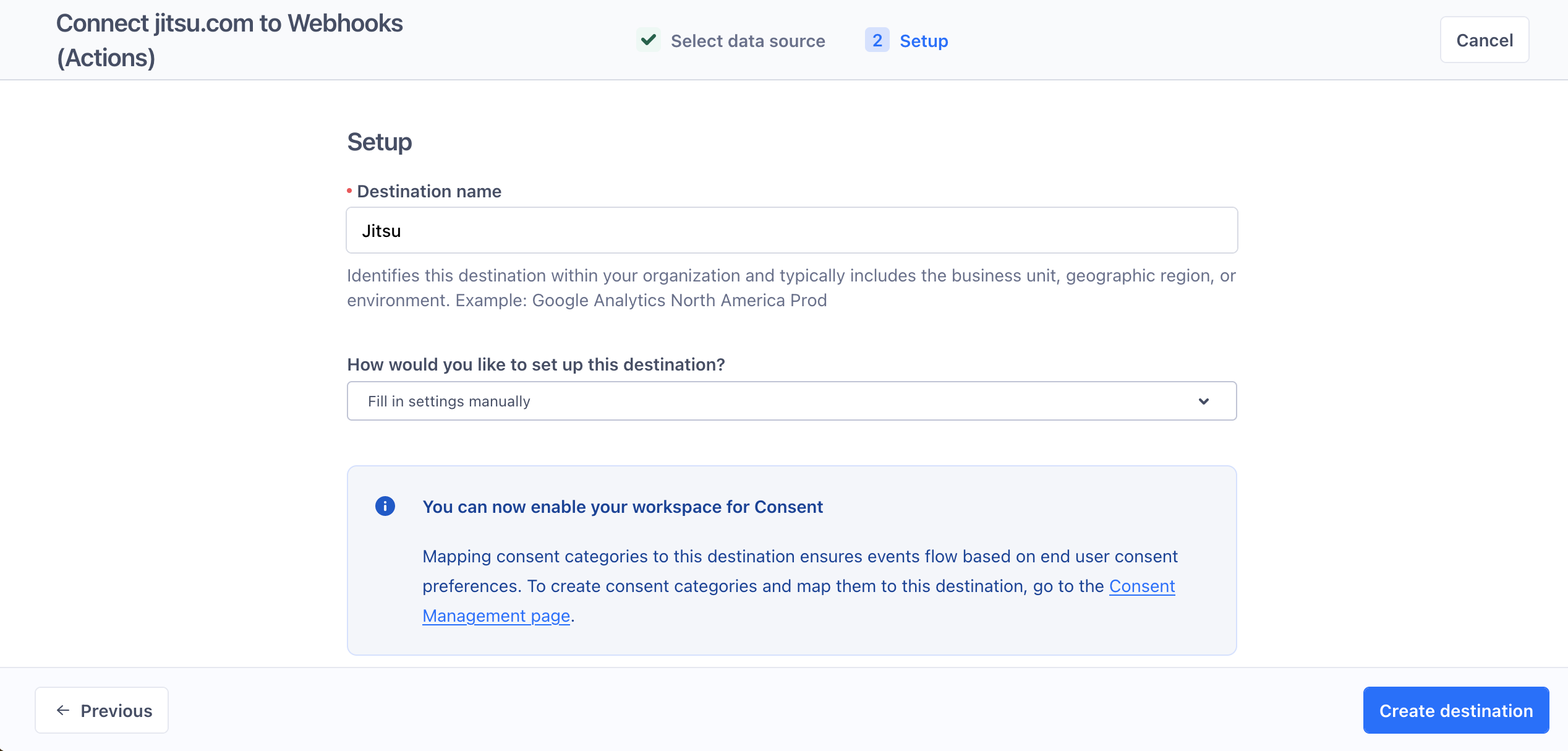
- Name your destination and click Create Destination
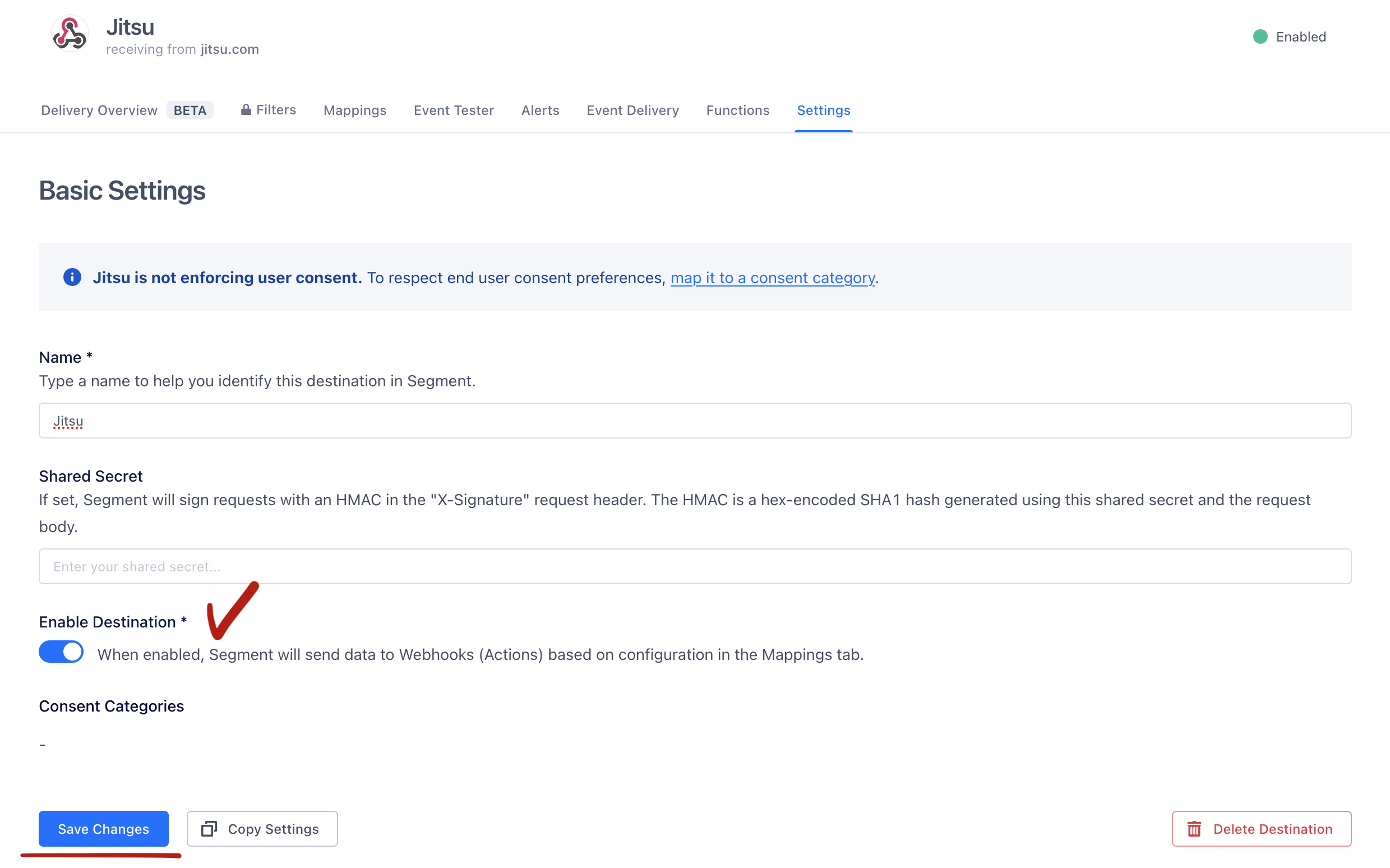
- Enable your destination and click Save changes
Set up Mapping
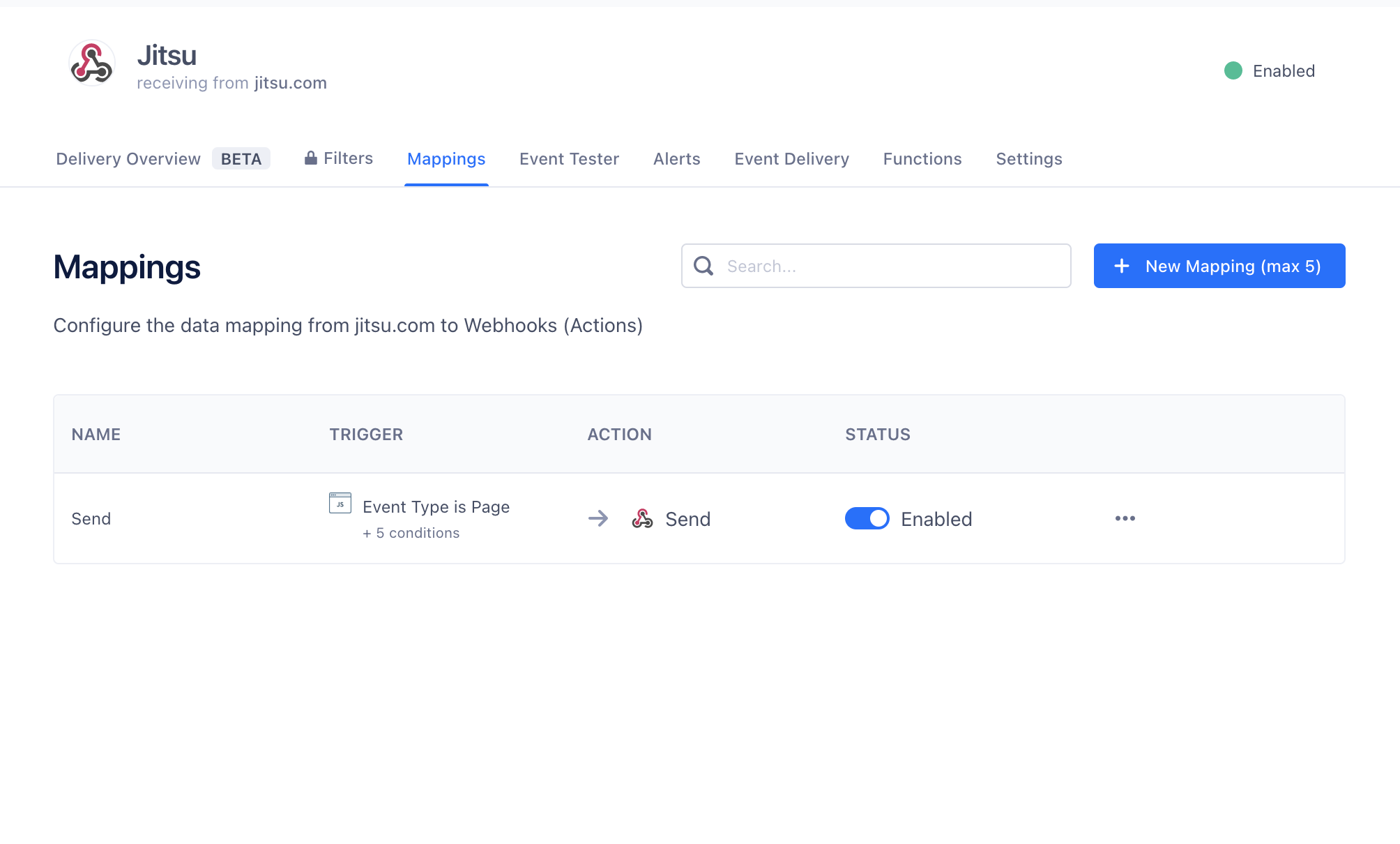
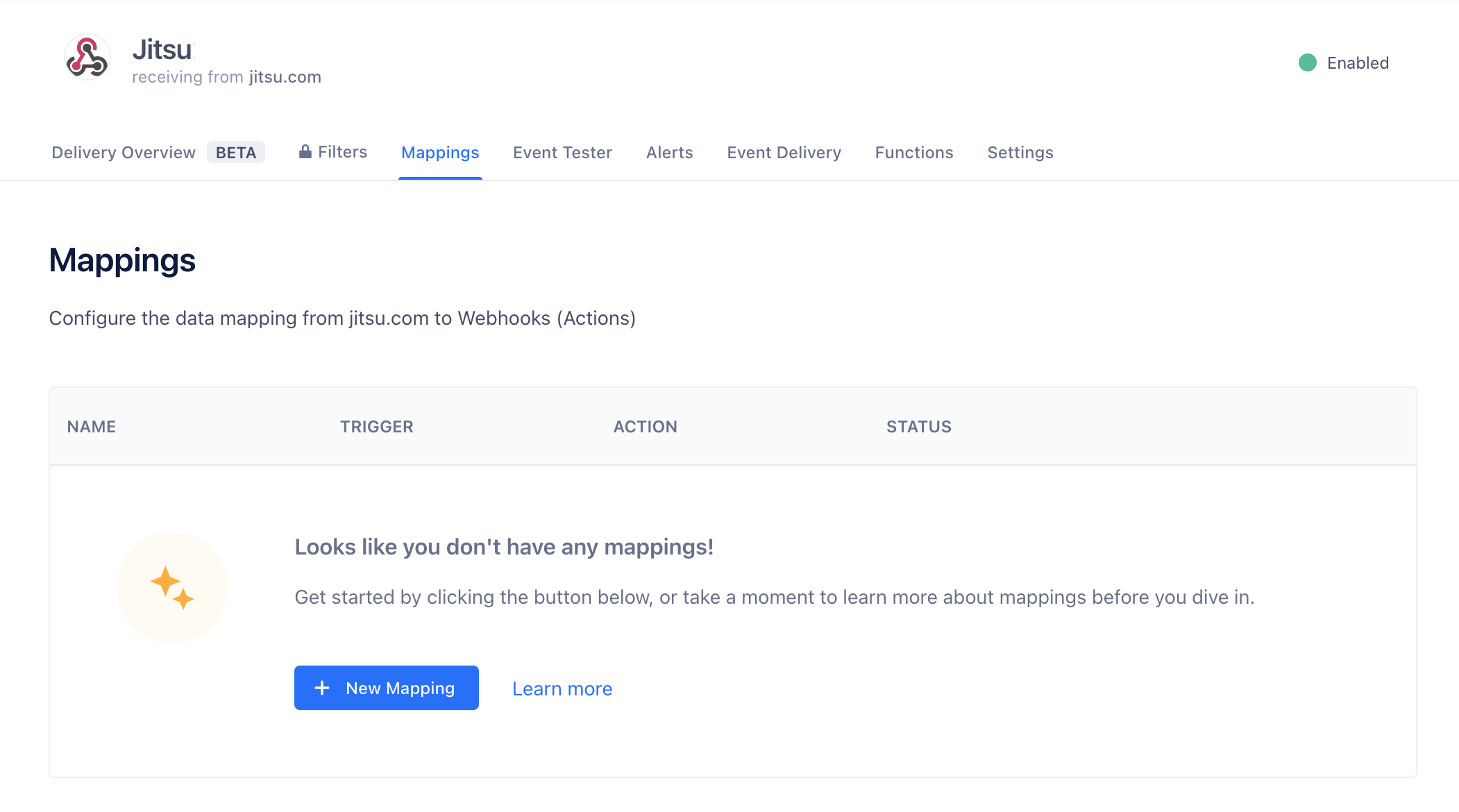
- Go to the Mappings tab and click New Mapping
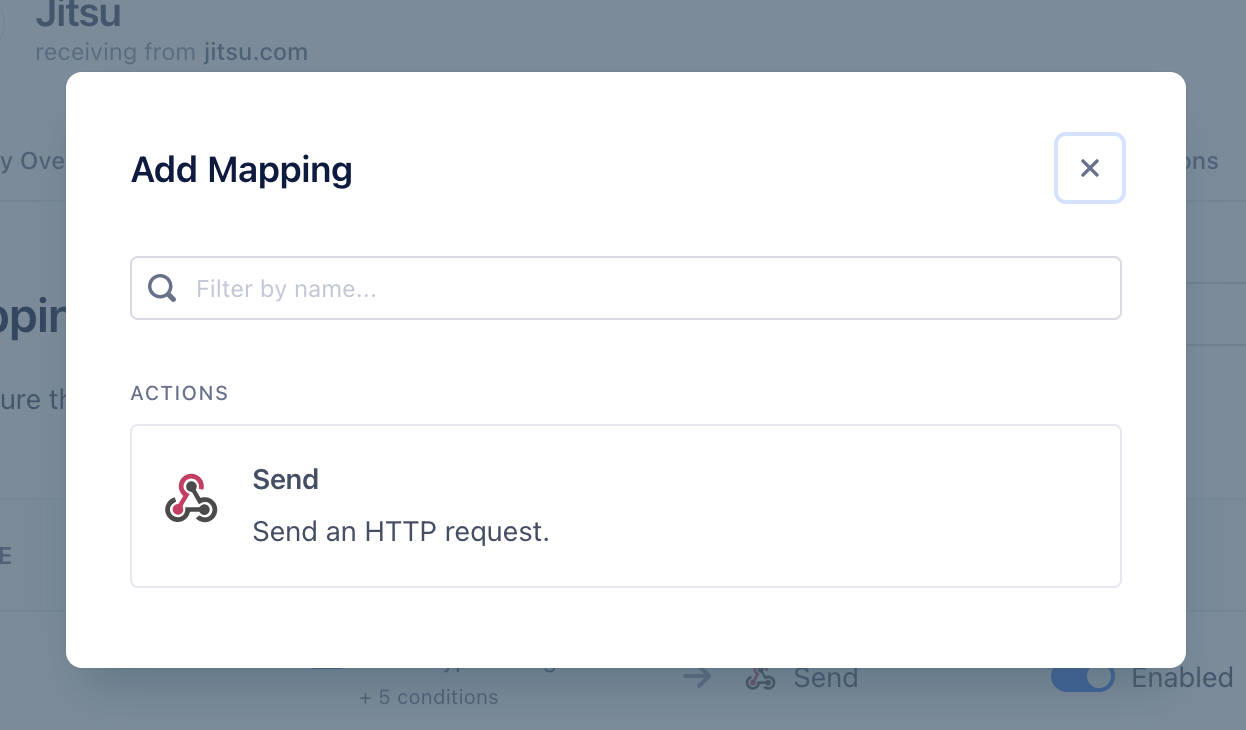
- Click on Send action
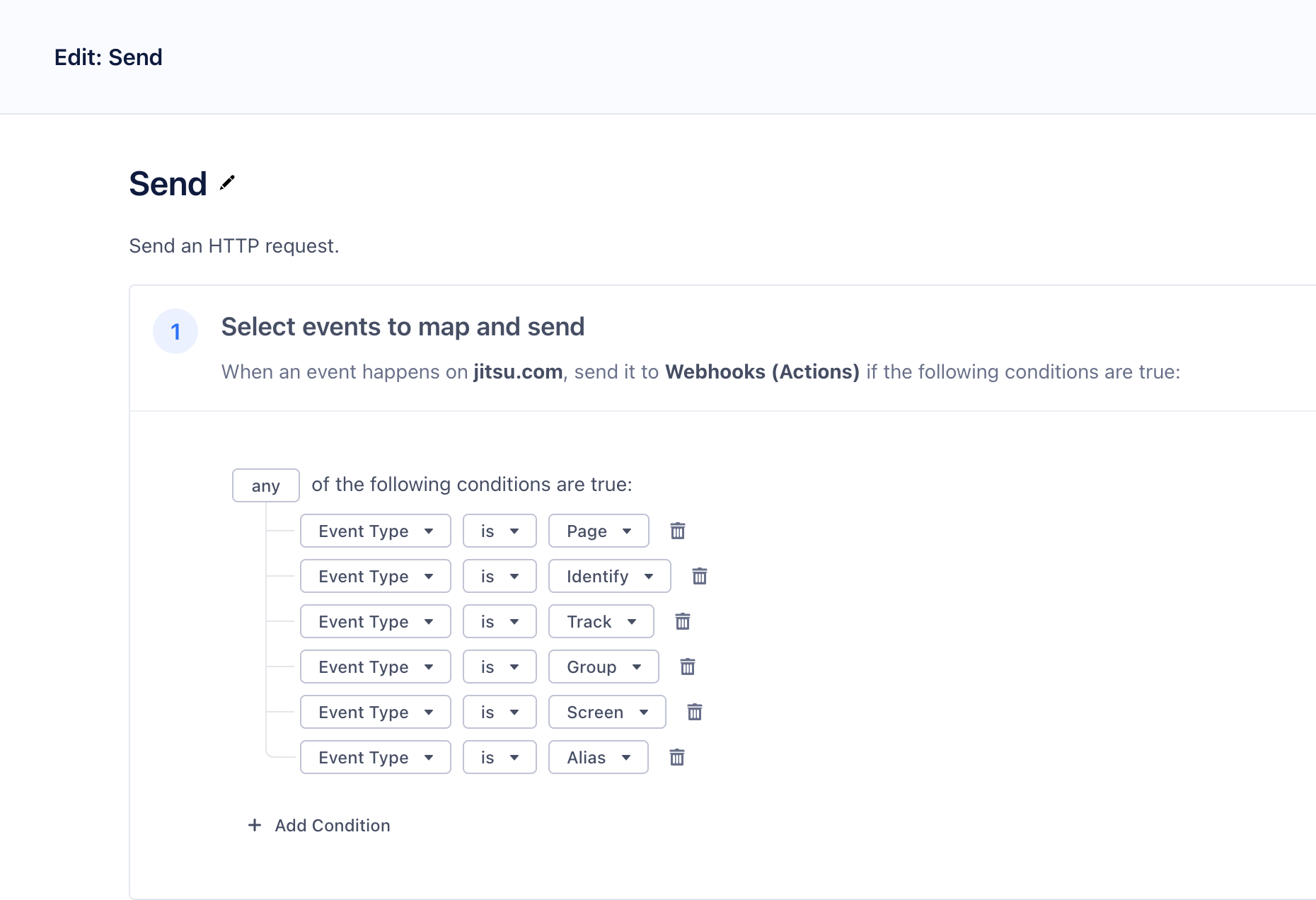
- Select events to map. You can map all events or specific ones
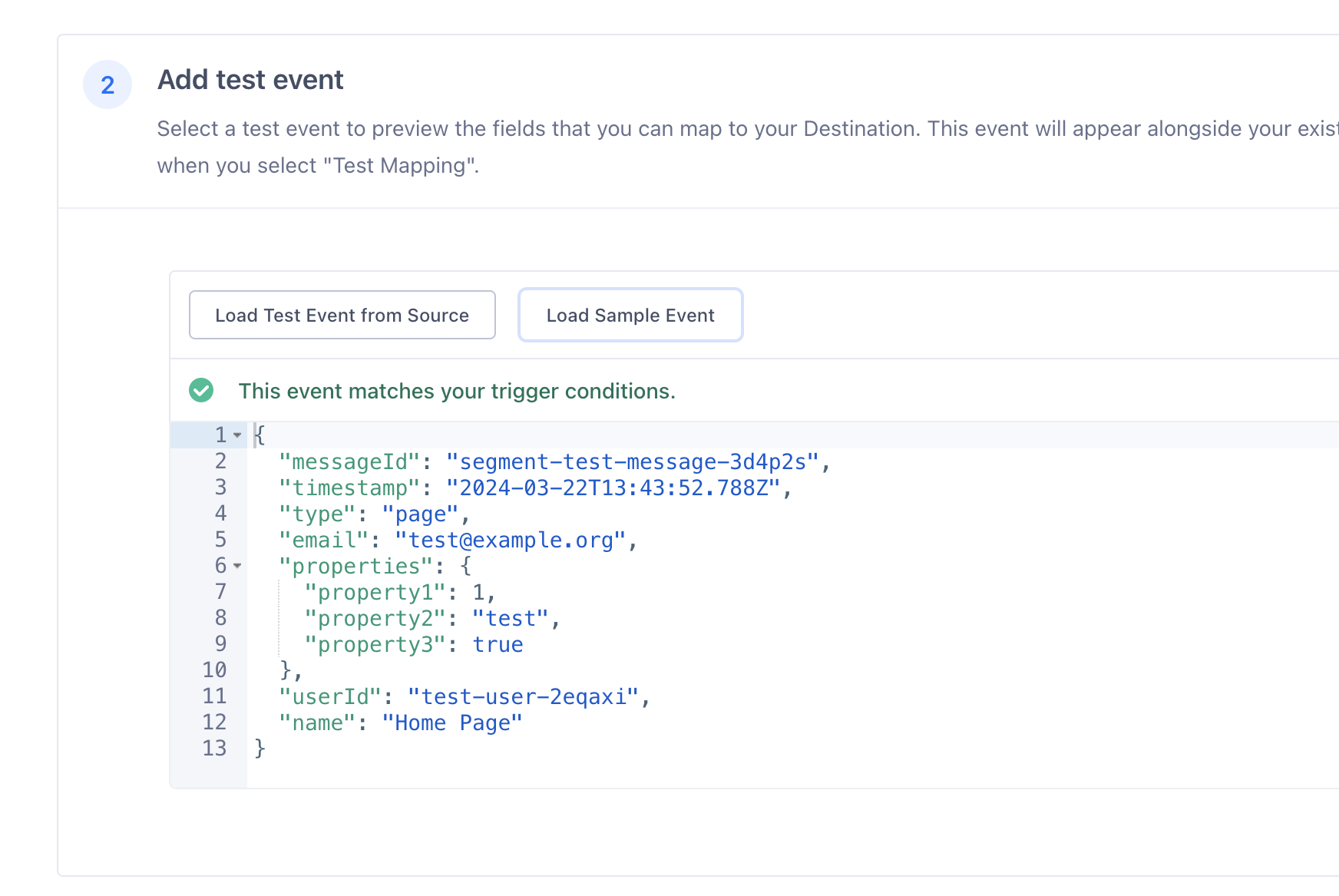
- Add test event. If your source is alive you can choose Load Test Event from Source, otherwise you can click Load Sample Event
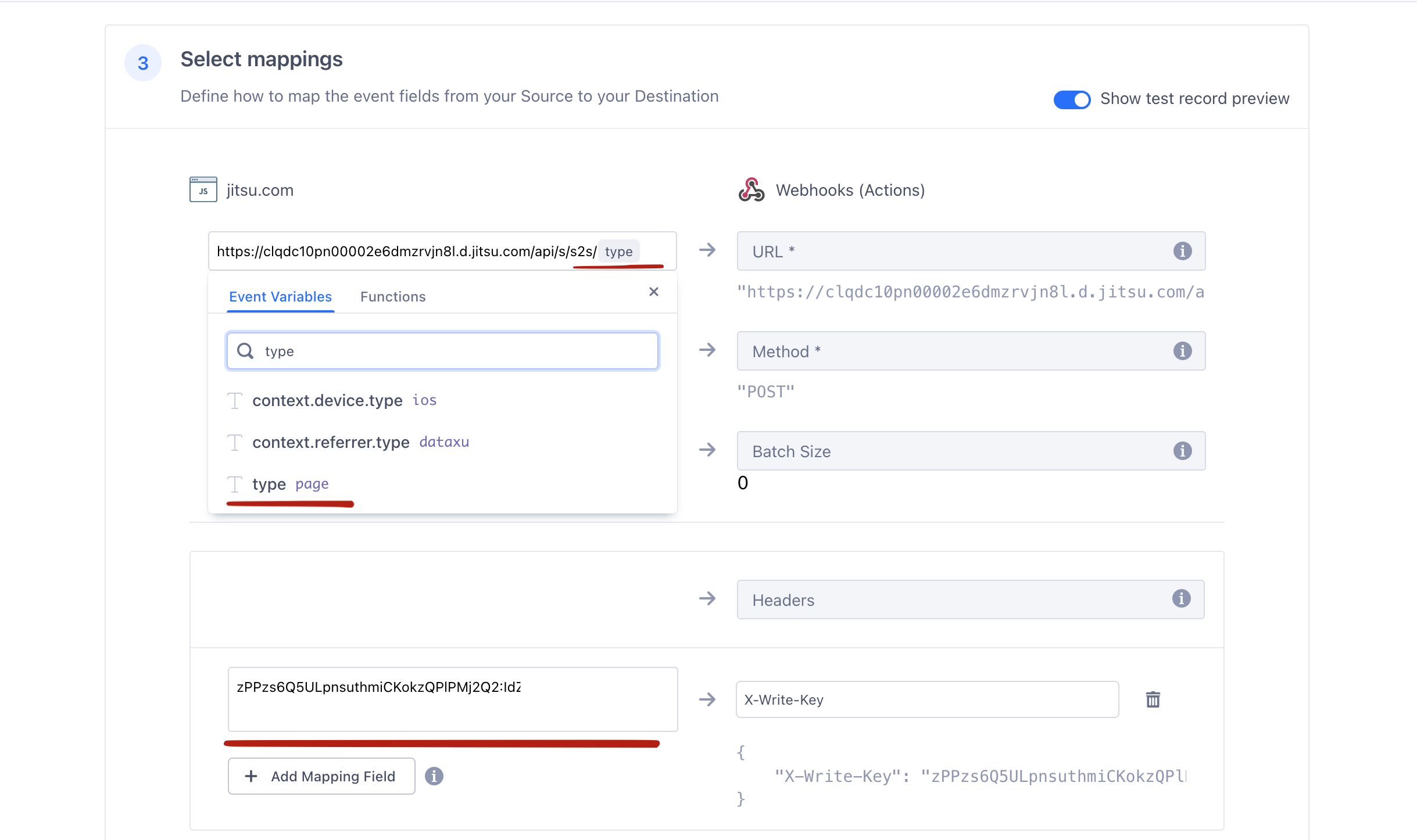
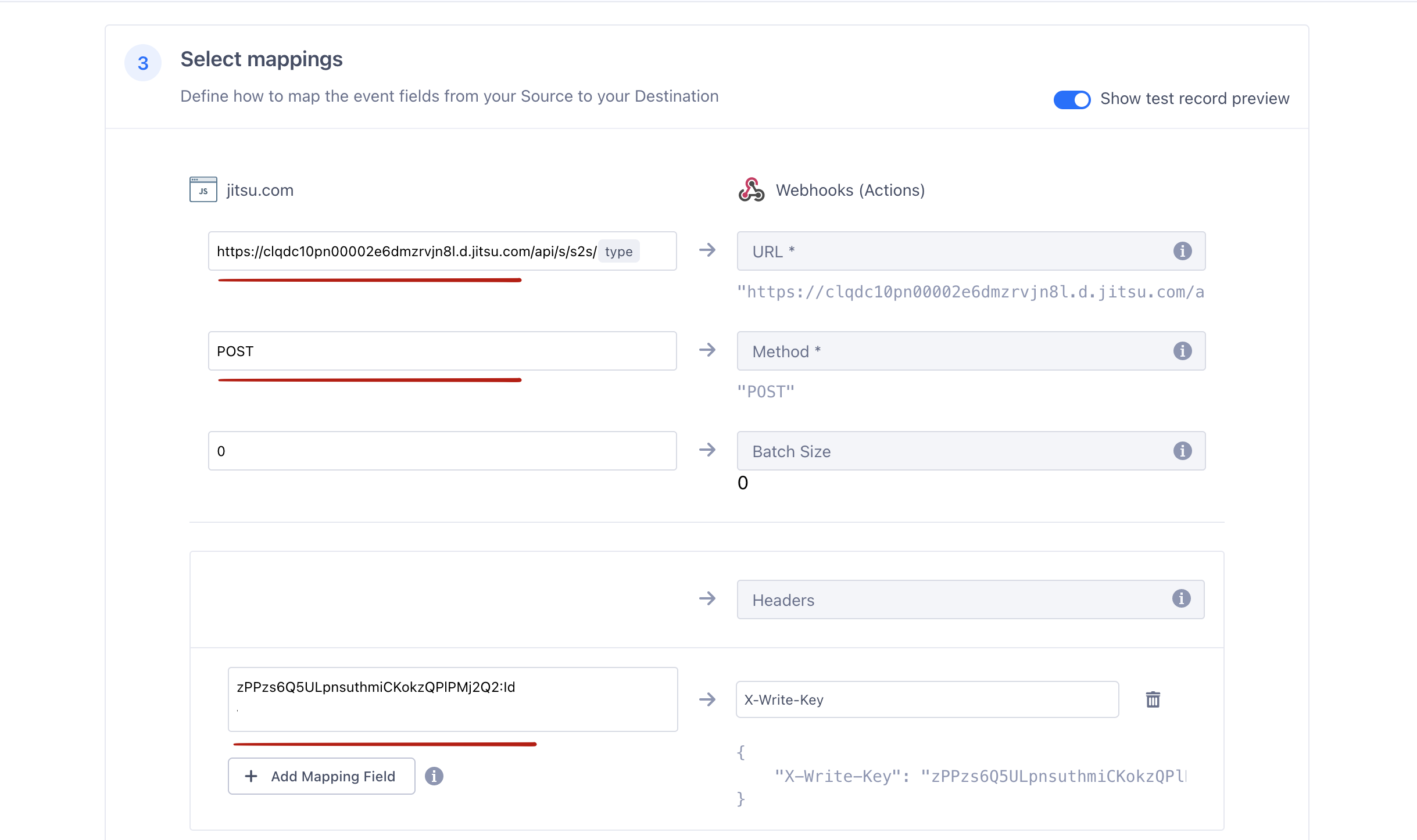
- Select mappings
Fill URL field with your Jitsu instance S2S endpoint URL while replacing event type at the end of URL with the type variable from the dropdown list:
and Write Key with your Jitsu site Server-to-server Write Key
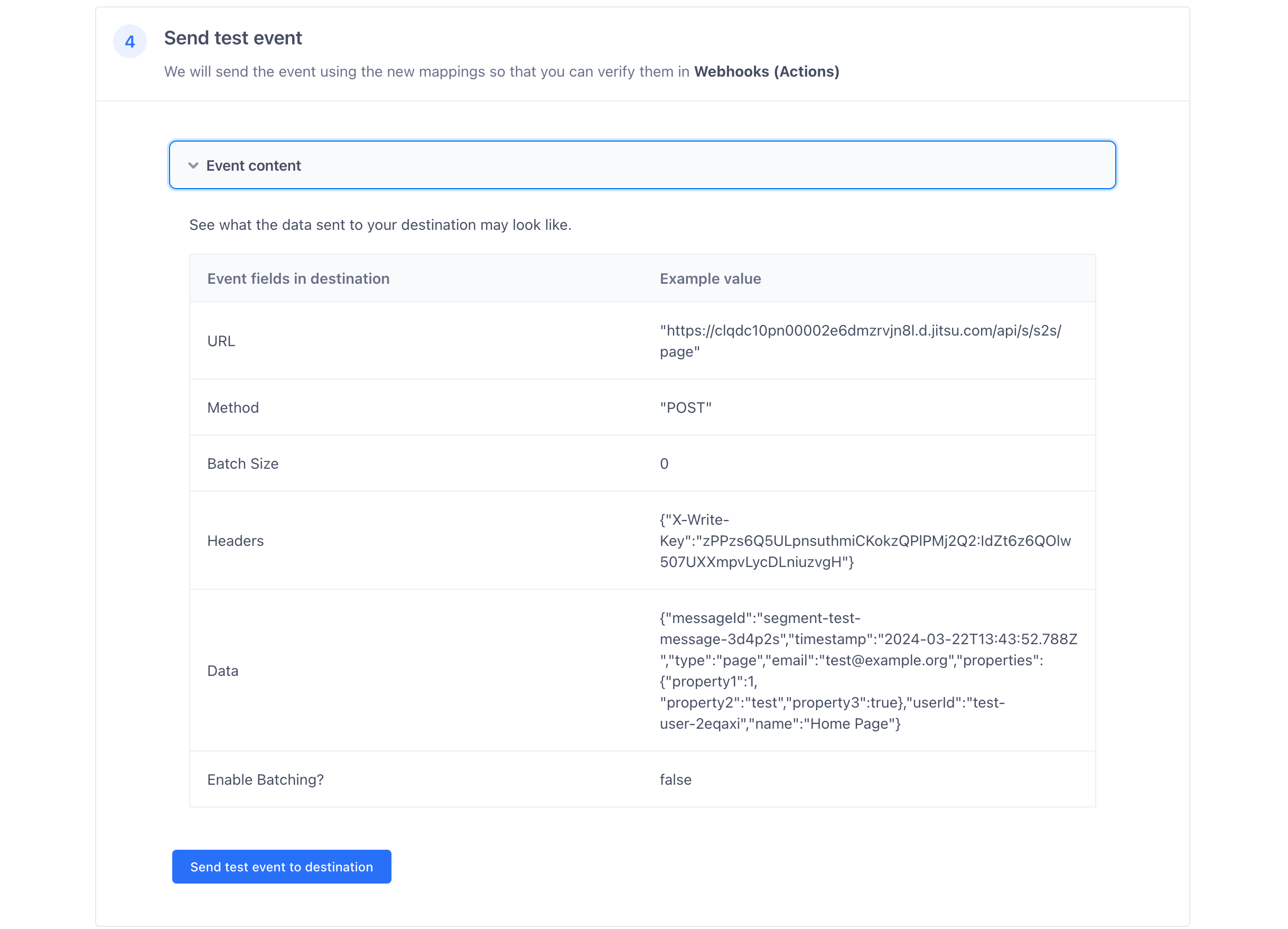
- Send test event and check if it was received in Jitsu
Press Send test event to destination button
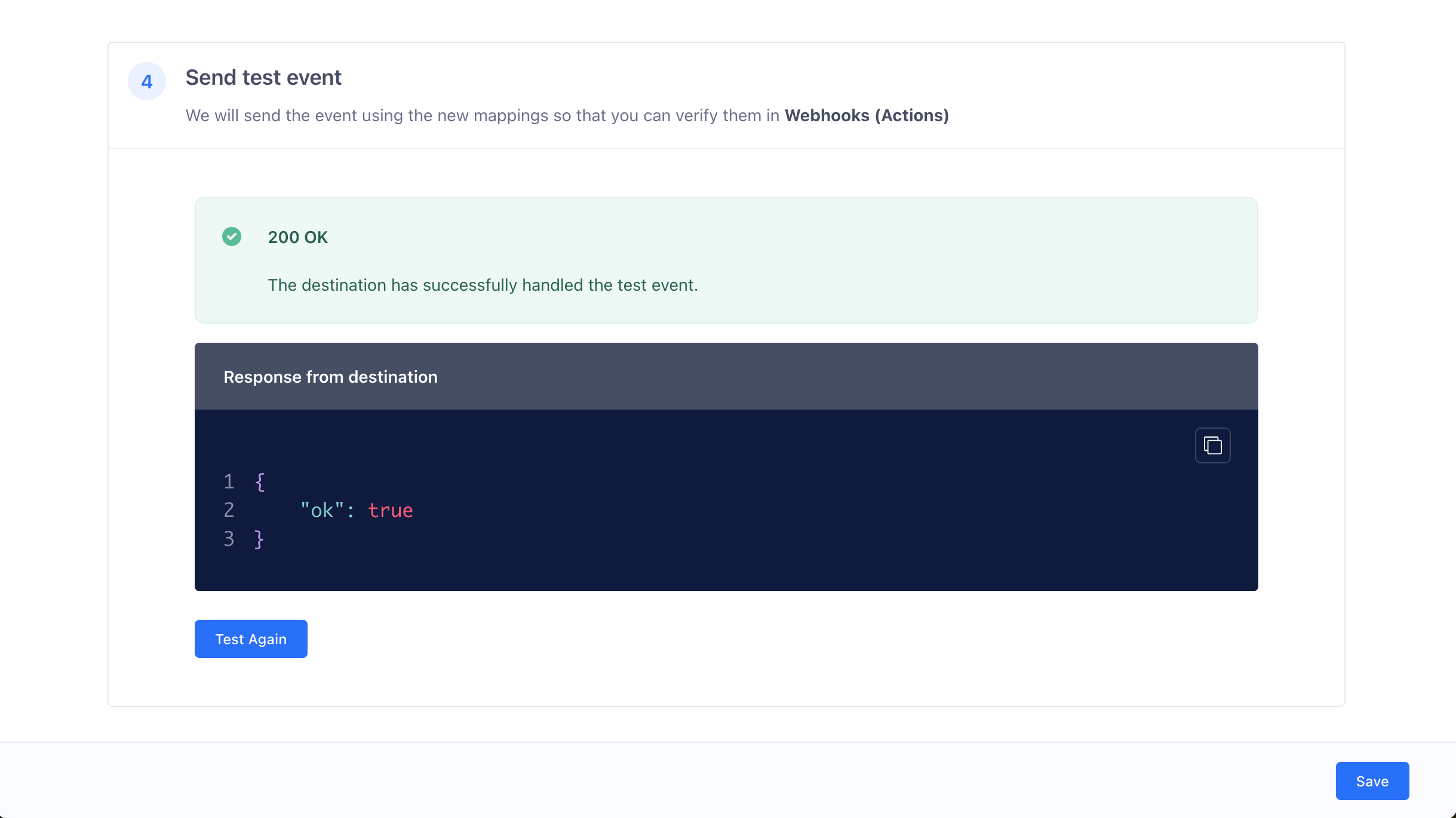
Make sure that you see a successful response:
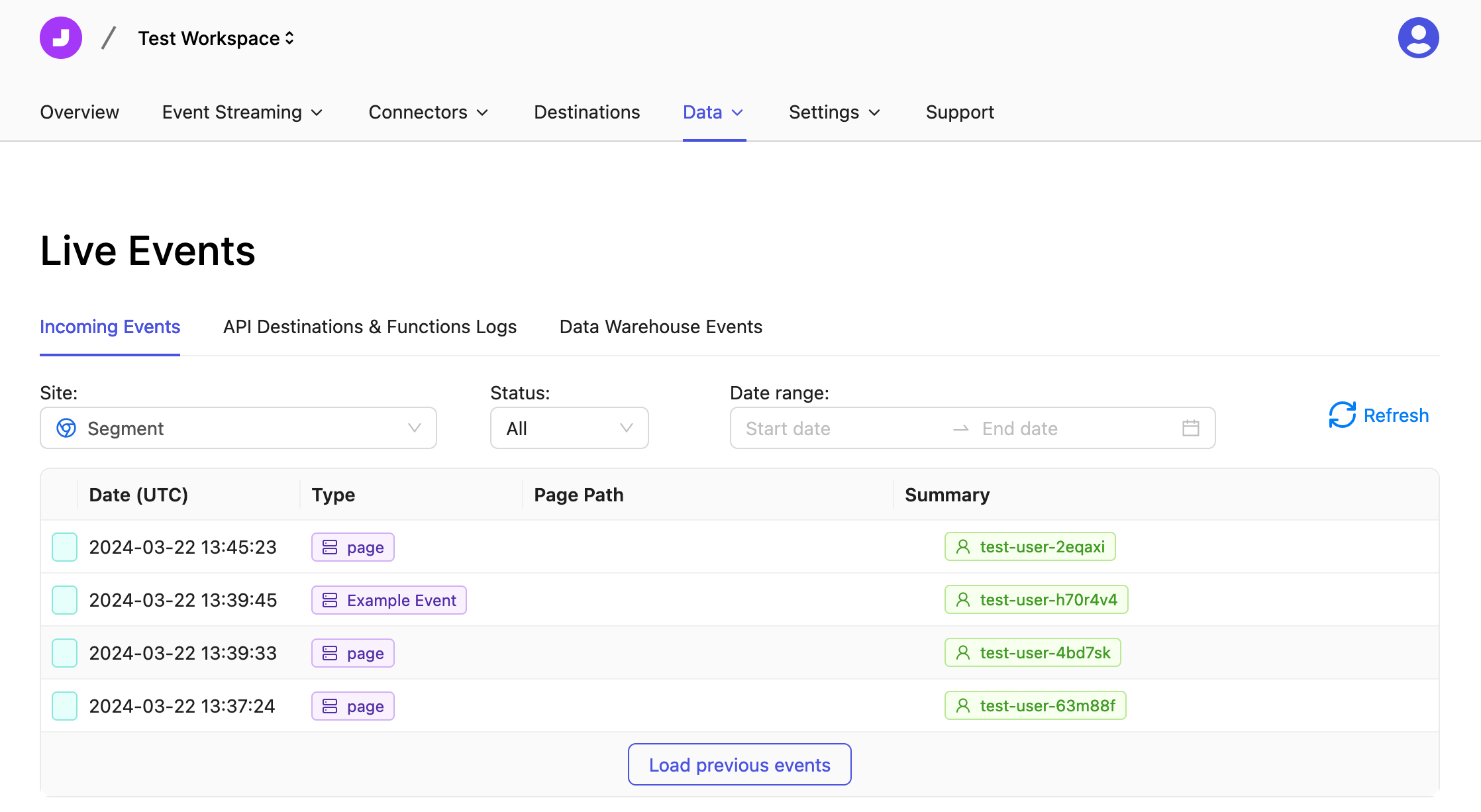
Check Jitsu - Live Events section to see if the test event was received
Save Mapping and make sure that it's enabled